How to Undelete Messages on iPhone is a common question after an important conversation is accidentally erased. Accidentally deleting an essential text message thread, a two-factor authentication code, or a conversation filled with sentimental photos can instantly trigger panic. Fortunately, Apple’s iOS operating system includes several built-in recovery features designed to prevent deleted text messages and iMessages from disappearing permanently. By using options such as the Recently Deleted folder, iCloud backups, or other Apple recovery methods, many deleted messages can often be restored quickly and securely.
Whether you deleted a thread seconds ago or lost important conversations weeks ago, there are multiple built-in paths to undelete your messages. This guide walks you through every recovery method—from native on-device tools to cloud backups and secondary device synchronization.
Method 1: Undelete Messages via the “Recently Deleted” Folder
Modern versions of iOS include a built-in temporary staging bin directly within the Messages app. When you delete a message thread, it is moved to this hidden folder for 30 days (and up to 40 days depending on storage conditions) before being automatically purged.
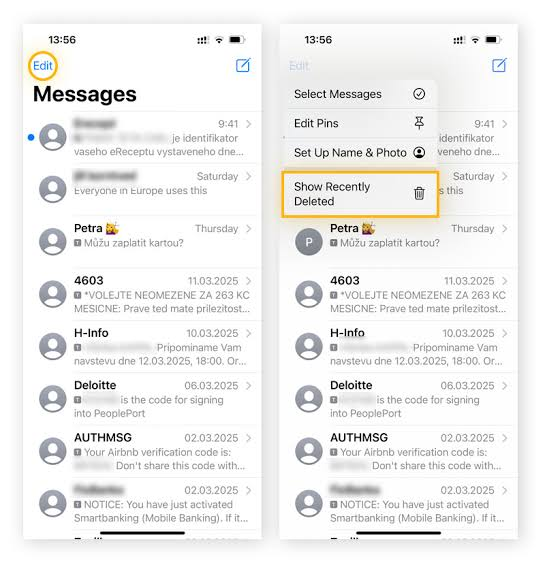
1.Open the Messages App:
Launch the Messages app that comes preinstalled on your iPhone. Ensure you are on the main conversation list screen.
2.Access the Menu Options:
Look at the top-left corner of the screen:
- If message filtering is off, tap Edit.
- If message filtering is turned on, tap Filters.
3.Select ‘Show Recently Deleted’:
Tap Show Recently Deleted from the drop-down menu. You will see a list of deleted threads along with the remaining number of days before permanent deletion.
4.Select and Restore Your Threads:
Tap the checkmarks next to the message threads you want to recover, then tap Recover in the bottom-right corner. Confirm by selecting Recover Messages.
Method 2: Undelete Messages Using an iCloud Backup
If more than 30 days have passed and your messages are no longer in the Recently Deleted folder, you can restore them if you created an iCloud Backup while those messages were still present on your phone.
Crucial Warning: Restoring from an iCloud Backup requires erasing your iPhone to roll back system storage to the saved backup point. Always verify your backup date before erasing your device.
Step 1: Verify Your Backup Date
Before erasing your device, check that a valid backup exists from before the messages were deleted:
- Open the Settings app, then tap your name at the top of the screen.
- Select iCloud > iCloud Backup.
- Check the timestamp listed under Back Up Now to confirm the date is accurate.
Step 2: Erase and Restore Your iPhone
- Go to Settings > General > Transfer or Reset iPhone.
- Tap Erase All Content and Settings and enter your passcode to confirm.
- Once the iPhone restarts and displays the “Hello” screen, follow the on-screen assistant.
- When you reach the Apps & Data screen, select Restore from iCloud Backup.
- Sign in with your Apple Account credentials and select the backup file created prior to deleting your messages.
Method 3: Check Other Synced Devices or Mobile Carriers
If you lack an iCloud backup and the 30-day window has expired, two alternative avenues remain:
1. Check a Paired Mac or iPad
If Messages in iCloud was turned off in your account settings, deleting a text conversation on your iPhone does not automatically remove it from your other Apple devices. Open the Messages app on your Mac or iPad—if the device was offline or un-synced at the time of deletion, your message thread may still be intact.
2. Request SMS Logs from Your Cellular Carrier
Standard SMS/MMS messages (green bubbles) route directly through your wireless service provider’s network. While carriers rarely store the actual text body of conversations for privacy reasons, some maintain web portals where users can view recent text logs or access carrier-based backup services.
Diagnostic Comparison: Choosing the Right Recovery Method
| Recovery Path | Time Limit | Computer Needed? | Data Loss Risk |
| Recently Deleted Folder | Up to 30–40 Days | No | Zero Risk (Safest method) |
| iCloud Backup Restore | Governed by backup date | No | High (Requires full device erase) |
| Mac / Finder Backup | Governed by local backup | Yes (Mac / PC) | High (Overwrites current device state) |
| Secondary Apple Device | Indefinite (If sync was off) | No | Zero Risk |
Preventative Steps: Protect Messages from Future Deletion
Preventative Steps: Protect Messages from Future Deletion by following iPhone data recovery tips to reduce the risk of losing important conversations.
- Turn On Messages in iCloud: Navigate to Settings > [Your Name] > iCloud > Messages and toggle it On for continuous cloud synchronization using Messages in iCloud.
- Adjust Message Retention Rules: Go to Settings > Messages > Keep Messages and switch the setting to Forever so older threads are never automatically purged.
- Enable Automatic Daily Backups: Keep iCloud Backup enabled under your Apple Account settings so your device creates an automated snapshot every night while charging with iCloud Backup enabled.
Frequently Asked Questions
Can I undelete a single text message within a thread?
Yes. When you restore a conversation thread from the Recently Deleted folder, all individual messages deleted from that thread within the 30-day window are restored simultaneously back to their original position.
Why is the “Recently Deleted” option missing from my Messages app?
The Show Recently Deleted option only appears in the menu if you have deleted a message within the last 30 to 40 days. If your trash bin is empty, the option remains hidden automatically.
Can third-party recovery software undelete permanently purged messages?
Modern iPhones use hardware-level encryption (managed via the Secure Enclave). Once a message is purged from the Recently Deleted folder and its local encryption key is overwritten, third-party software cannot recover the data unless an unencrypted local computer backup exists.